 28allday
13b50db92c
28allday
13b50db92c
uninstall.sh removes everything super-alt-s.sh installs: switching scripts, gamescope session entry, Super+Alt+S shortcut, DM autologin drop-in, sudoers/polkit/udev/performance config and NM coexistence files. Optional prompts (default no) for the two session-only AUR packages, the autologin group, and gaming-mode.conf. Supports --yes and --dry-run, refuses to run from inside Gaming Mode or as root, and warns if KDE is absent (matching filenames may belong to another tool). Packages, Proton-GE, group memberships, the NVIDIA kernel param and multilib are deliberately kept, with manual revert steps in the README. Co-Authored-By: Claude Fable 5 <noreply@anthropic.com> |
||
|---|---|---|
| LICENSE | ||
| README.md | ||
| super-alt-s.sh | ||
| uninstall.sh | ||
Super Alt S - Gaming Mode for KDE Plasma
Switch between KDE Plasma desktop and Steam Big Picture Gaming Mode with a keyboard shortcut. Built for Arch Linux and CachyOS.
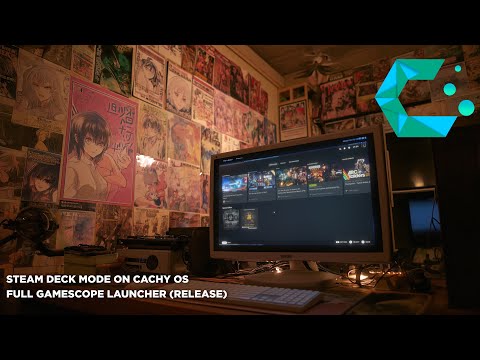
Super+Alt+S to enter Gaming Mode. Super+Alt+R to return to desktop.
What's new (2026-05-16)
A round of CachyOS-compatibility and reliability work. No new shortcuts or user-visible flow changes, but several quiet footguns from the initial release are fixed.
- plasma-login-manager support. CachyOS now ships
plasmaloginby default instead of SDDM. The installer detects which DM is active and parameterises every session-switch script, sudoers entry, and config path accordingly. SDDM hosts behave exactly as before. - Proton-GE installed direct from GitHub instead of via the AUR's
proton-ge-custom-bin, which had been silently failing. The new path is idempotent (skips if aGE-Proton*directory already exists) and SHA-verified. - AUR resilience. Both the gamescope-session install and the optional-AUR-deps phase now check AUR reachability up front and retry the install up to 3× with 15s backoff. Stops the old "silent skip" mode where a transient AUR outage left the gaming session uninstalled.
- Fixed: CachyOS package conflicts.
gamescope-session-cachyos(whichProvides=the -git names but is missing files gamescope-session-plus needs) is now removed pre-emptively, then locked inIgnorePkgsopacman -Syuwon't try to swap it back. Resolves the autologin black-screen loop a few users hit. - Fixed: SDDM drop-in priority. Renamed
/etc/sddm.conf.d/zz-gaming-session.conf→zzz-gaming-session.confso it outranks CachyOS's ownzz-steamos-autologin.conf(lexical sort). The old file is auto-removed during install. - Fixed: Limine on CachyOS. When
/etc/default/limine+limine-updateare present, kernel-param edits go there (the source of truth) rather than to/boot/limine.conf, which gets regenerated on every mkinitcpio run. - Post-install verification now hard-fails with a clear remediation message if
gamescope-session-plusis missing after the AUR build, instead of letting you reboot into a broken session. - Removed CFS sysctls from the sudoers entries (
sched_migration_cost_ns,sched_min_granularity_ns,sched_latency_ns) — these knobs were deleted from the kernel when EEVDF replaced CFS in 6.6, so the sudoers lines just produced errors.
What it does
This installer sets up a full console-like gaming experience on your KDE Plasma desktop by configuring:
- Gamescope session using ChimeraOS packages (
gamescope-session-git,gamescope-session-steam-git) - Steam Big Picture running in a dedicated Wayland session via gamescope
- One-key switching between KDE Plasma and Gaming Mode — works with SDDM or plasma-login-manager (auto-detected)
- GPU auto-detection for NVIDIA, AMD dGPU, and AMD APU systems
- Performance mode with CPU governor, GPU power management, and kernel tuning
- NetworkManager integration so Steam has network access even if your desktop uses iwd/systemd-networkd
- External drive auto-mounting for Steam libraries on secondary drives
- Shader cache optimisation for reduced stuttering
- Installation verification to confirm everything is set up correctly
Requirements
- Arch Linux or CachyOS (or any Arch-based distro with KDE Plasma)
- KDE Plasma 6 (Wayland)
- SDDM or plasma-login-manager display manager (CachyOS ships
plasmaloginby default — the installer auto-detects either) - AMD or NVIDIA GPU (Intel-only is not supported)
- Steam (installed during setup if missing)
- AUR helper (yay or paru) for ChimeraOS session packages
Install
git clone https://git.no-signal.uk/nosignal/super-alt-s.git
cd super-alt-s
chmod +x super-alt-s.sh
./super-alt-s.sh
The installer is interactive and will walk you through each step, asking before making changes.
Usage
| Action | Shortcut |
|---|---|
| Enter Gaming Mode | Super+Alt+S (from KDE Plasma) |
| Return to Desktop | Super+Alt+R (from Gaming Mode) |
| Return to Desktop (fallback) | Steam > Power > Exit to Desktop |
Uninstall
Return to the desktop first (Super+Alt+R) — the uninstaller refuses to run from inside Gaming Mode, because it deletes the scripts the session needs to switch back.
From the cloned repo:
chmod +x uninstall.sh
./uninstall.sh
Run it as your normal user (not root) — it uses sudo where needed. Use --dry-run to see what would be removed without changing anything, and --yes to skip the confirmation prompt.
The uninstaller removes everything listed under What gets installed below — the switching scripts, the Gaming Mode Wayland session, the Super+Alt+S shortcut, the display manager autologin drop-in, and all sudoers/polkit/udev/performance config. It also offers (optional, default no) to remove the two AUR packages that exist only for Gaming Mode (gamescope-session-git, gamescope-session-steam-git), your autologin group membership, and the gaming-mode.conf config file.
Deliberately left in place, with how to revert each:
| What | Why it's kept | To revert manually |
|---|---|---|
| Steam, gamescope, mangohud, gamemode, Vulkan drivers, python-evdev | Useful on their own; may predate this script | sudo pacman -Rns <package> |
Proton-GE in ~/.local/share/Steam/compatibilitytools.d/ |
It's your Steam data | Delete the GE-Proton* folder |
video, input, wheel group memberships |
Commonly needed outside gaming | sudo gpasswd -d $USER <group> |
nvidia-drm.modeset=1 kernel parameter (NVIDIA only) |
Harmless (often beneficial) on the desktop; bootloader edits are risky to automate | Restore the timestamped backup the installer made (/etc/default/grub.backup.*, /etc/default/limine.backup.*, or /boot/loader/entries/*.backup.*), then regenerate your bootloader config |
[multilib] pacman repo |
Steam and other 32-bit software need it | Restore /etc/pacman.conf.backup.* or comment the [multilib] block out |
After uninstalling, log out and back in (or reboot) to clear session environment variables and refresh the login screen's session list. If you use NetworkManager as your main network service, restart it (sudo systemctl restart NetworkManager) so it picks up its stock config again.
What gets installed
Packages (via pacman + AUR)
- Steam and all required 32-bit libraries
- GPU-specific Vulkan drivers (NVIDIA or AMD)
- gamescope, mangohud, gamemode
- Proton-GE — latest release pulled direct from GitHub into
~/.steam/steam/compatibilitytools.d/(the AURproton-ge-custom-binis unreliable, so we skip it) - gamescope-session-git + gamescope-session-steam-git (ChimeraOS AUR packages, with retry-on-failure + AUR reachability checks)
- python-evdev (for keybind monitoring)
Scripts
| File | Purpose |
|---|---|
/usr/local/bin/switch-to-gaming |
Switches from KDE to Gaming Mode |
/usr/local/bin/switch-to-desktop |
Switches from Gaming Mode to KDE |
/usr/local/bin/gamescope-session-nm-wrapper |
Session wrapper with NetworkManager + performance mode |
/usr/local/bin/gaming-keybind-monitor |
Python daemon monitoring Super+Alt+R in Gaming Mode |
/usr/local/bin/gaming-session-switch |
Updates SDDM config for session switching |
/usr/local/bin/gamescope-nm-start |
Starts NetworkManager for gaming session |
/usr/local/bin/gamescope-nm-stop |
Stops NetworkManager and restores iwd |
/usr/local/bin/steam-library-mount |
Auto-mounts external drives with Steam libraries |
/usr/lib/os-session-select |
Handles Steam's "Exit to Desktop" menu option |
System config
| File | Purpose |
|---|---|
/etc/sddm.conf.d/zzz-gaming-session.conf (or /etc/plasma-login-manager.conf.d/) |
DM autologin session switching — zzz-* prefix outranks CachyOS's own zz-steamos-autologin.conf |
/etc/sudoers.d/gaming-session-switch |
Passwordless sudo for session switching |
/etc/sudoers.d/gaming-mode-sysctl |
Passwordless sudo for performance tuning |
/etc/udev/rules.d/99-gaming-performance.rules |
CPU/GPU sysfs permissions |
/etc/security/limits.d/99-gaming-memlock.conf |
Memory lock limits for esync |
/etc/pipewire/pipewire.conf.d/10-gaming-latency.conf |
Low-latency audio |
/etc/environment.d/99-shader-cache.conf |
Shader cache sizes |
/etc/polkit-1/rules.d/50-gamescope-networkmanager.rules |
NM access for wheel group |
/etc/polkit-1/rules.d/50-udisks-gaming.rules |
Drive mount access for wheel group |
User config
| File | Purpose |
|---|---|
~/.config/environment.d/gamescope-session-plus.conf |
Resolution, refresh rate, GPU settings |
~/.config/kglobalshortcutsrc |
Super+Alt+S shortcut registration |
GPU support
NVIDIA
- Auto-detects NVIDIA GPU and installs required drivers/utils
- Checks and configures
nvidia-drm.modeset=1kernel parameter (supports GRUB, systemd-boot, and Limine) - Sets up GBM backend and Vulkan adapter
- NVIDIA gamescope wrapper with
--force-compositionif supported - Caps resolution at 2560x1440 for gamescope compatibility
- Performance mode includes persistence mode, max power limit, and runtime suspend disable
AMD (dGPU)
- Installs Vulkan RADEON drivers
- Enables adaptive sync and HDR
- Distinguishes between discrete GPUs and integrated APUs using PCI device identification
AMD APU
- Supported as a fallback when no discrete GPU is found
- Same session setup with APU-specific display detection
Verify installation
Run verification without reinstalling:
./super-alt-s.sh --verify
This checks all files, permissions, packages, user groups, and service status.
Options
./super-alt-s.sh              # Full install
./super-alt-s.sh --verify     # Verification only
./super-alt-s.sh --version    # Show version
./super-alt-s.sh --help       # Show help
How it works
-
KDE to Gaming Mode (Super+Alt+S): The
switch-to-gamingscript updates the display manager's session config togamescope-session-steam-nm, kills any existing gamescope, and restarts the DM service. The DM auto-logs in to the gaming session. (SDDM and plasma-login-manager are both supported — the installer detects which one you're running and parameterises the scripts accordingly.) -
Gaming session startup: The
gamescope-session-nm-wrapperenables performance mode (CPU governor, GPU power), starts NetworkManager, launches the Steam library drive monitor, starts the keybind monitor, then hands off to ChimeraOS'sgamescope-session-pluswhich launches gamescope with Steam. -
Gaming Mode to KDE (Super+Alt+R): The
gaming-keybind-monitorPython daemon detects the key combo via evdev and callsswitch-to-desktop, which shuts down Steam, kills gamescope, updates the DM config back to KDE Plasma, and restarts the DM service. -
Cleanup on exit: Performance mode is restored to balanced, NetworkManager is stopped (iwd restarted if needed), drive monitor and keybind monitor are killed.
Troubleshooting
No network in Gaming Mode
- Check NetworkManager is installed:
pacman -S networkmanager - Test manually:
sudo systemctl start NetworkManager && nmcli general - Check logs:
journalctl -u NetworkManager -n 50
Shortcut not working in KDE
- Log out and back in after install
- Or set manually: System Settings > Shortcuts > search "Gaming Mode"
Super+Alt+R not working in Gaming Mode
- Ensure you're in the
inputgroup:groups | grep input - Check python-evdev:
python3 -c "import evdev" - Check input devices:
ls /dev/input/event*
NVIDIA: black screen or no display
- Verify kernel parameter:
cat /proc/cmdline | grep nvidia-drm.modeset - Reboot if you just added the parameter
- Check DRM cards:
ls /sys/class/drm/card*/device/driver -la
Proton-GE not appearing in Steam
- Check it installed:
ls ~/.steam/steam/compatibilitytools.d/ - Restart Steam fully (not just the window — quit from the tray) so it picks up new compat tools
- Re-run the installer to retry the GitHub download if the directory is empty
Black screen / login loop after entering Gaming Mode (CachyOS)
- Usually means
gamescope-session-cachyoswas reinstalled by a system update. Re-run./super-alt-s.shto remove it and lock it inIgnorePkg. - Confirm the AUR build succeeded:
ls /usr/share/gamescope-session-plus/gamescope-session-plus
License
MIT