 28allday
218c72037c
28allday
218c72037c
install_proton_ge_from_github() was creating ~/.steam/steam/compatibilitytools.d via mkdir -p before Steam had ever been launched. That forces ~/.steam/steam to exist as a real directory — which then prevents Steam, on first launch, from creating it as a symlink to ~/.local/share/Steam. Result: desktop Steam fails with "can't configure Steam data" / "Steam needs to be online to update". Switch the install target to ~/.local/share/Steam/compatibilitytools.d/ (the real Steam data dir). When Steam first runs it sets up ~/.steam/steam as a symlink → ~/.local/share/Steam, so Proton-GE is picked up automatically. Also check the legacy ~/.steam/steam/compatibilitytools.d path in the idempotency probe so re-runs on previously-installed boxes don't redownload. Bump version 12.27-KDE → 13.0-KDE (covers this fix plus the 2026-05-16 plasma-login-manager / AUR-reliability update which never bumped the string). |
||
|---|---|---|
| LICENSE | ||
| README.md | ||
| super-alt-s.sh | ||
Super Alt S - Gaming Mode for KDE Plasma
Switch between KDE Plasma desktop and Steam Big Picture Gaming Mode with a keyboard shortcut. Built for Arch Linux and CachyOS.
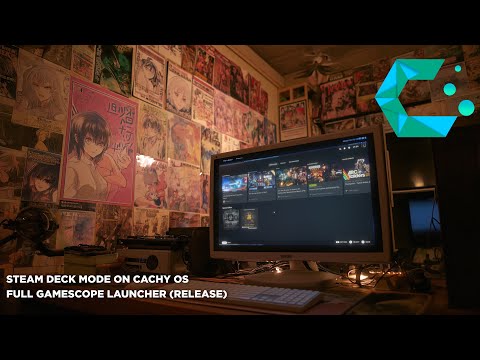
Super+Alt+S to enter Gaming Mode. Super+Alt+R to return to desktop.
What's new (2026-05-16)
A round of CachyOS-compatibility and reliability work. No new shortcuts or user-visible flow changes, but several quiet footguns from the initial release are fixed.
- plasma-login-manager support. CachyOS now ships
plasmaloginby default instead of SDDM. The installer detects which DM is active and parameterises every session-switch script, sudoers entry, and config path accordingly. SDDM hosts behave exactly as before. - Proton-GE installed direct from GitHub instead of via the AUR's
proton-ge-custom-bin, which had been silently failing. The new path is idempotent (skips if aGE-Proton*directory already exists) and SHA-verified. - AUR resilience. Both the gamescope-session install and the optional-AUR-deps phase now check AUR reachability up front and retry the install up to 3× with 15s backoff. Stops the old "silent skip" mode where a transient AUR outage left the gaming session uninstalled.
- Fixed: CachyOS package conflicts.
gamescope-session-cachyos(whichProvides=the -git names but is missing files gamescope-session-plus needs) is now removed pre-emptively, then locked inIgnorePkgsopacman -Syuwon't try to swap it back. Resolves the autologin black-screen loop a few users hit. - Fixed: SDDM drop-in priority. Renamed
/etc/sddm.conf.d/zz-gaming-session.conf→zzz-gaming-session.confso it outranks CachyOS's ownzz-steamos-autologin.conf(lexical sort). The old file is auto-removed during install. - Fixed: Limine on CachyOS. When
/etc/default/limine+limine-updateare present, kernel-param edits go there (the source of truth) rather than to/boot/limine.conf, which gets regenerated on every mkinitcpio run. - Post-install verification now hard-fails with a clear remediation message if
gamescope-session-plusis missing after the AUR build, instead of letting you reboot into a broken session. - Removed CFS sysctls from the sudoers entries (
sched_migration_cost_ns,sched_min_granularity_ns,sched_latency_ns) — these knobs were deleted from the kernel when EEVDF replaced CFS in 6.6, so the sudoers lines just produced errors.
What it does
This installer sets up a full console-like gaming experience on your KDE Plasma desktop by configuring:
- Gamescope session using ChimeraOS packages (
gamescope-session-git,gamescope-session-steam-git) - Steam Big Picture running in a dedicated Wayland session via gamescope
- One-key switching between KDE Plasma and Gaming Mode — works with SDDM or plasma-login-manager (auto-detected)
- GPU auto-detection for NVIDIA, AMD dGPU, and AMD APU systems
- Performance mode with CPU governor, GPU power management, and kernel tuning
- NetworkManager integration so Steam has network access even if your desktop uses iwd/systemd-networkd
- External drive auto-mounting for Steam libraries on secondary drives
- Shader cache optimisation for reduced stuttering
- Installation verification to confirm everything is set up correctly
Requirements
- Arch Linux or CachyOS (or any Arch-based distro with KDE Plasma)
- KDE Plasma 6 (Wayland)
- SDDM or plasma-login-manager display manager (CachyOS ships
plasmaloginby default — the installer auto-detects either) - AMD or NVIDIA GPU (Intel-only is not supported)
- Steam (installed during setup if missing)
- AUR helper (yay or paru) for ChimeraOS session packages
Install
git clone https://git.no-signal.uk/nosignal/super-alt-s.git
cd super-alt-s
chmod +x super-alt-s.sh
./super-alt-s.sh
The installer is interactive and will walk you through each step, asking before making changes.
Usage
| Action | Shortcut |
|---|---|
| Enter Gaming Mode | Super+Alt+S (from KDE Plasma) |
| Return to Desktop | Super+Alt+R (from Gaming Mode) |
| Return to Desktop (fallback) | Steam > Power > Exit to Desktop |
What gets installed
Packages (via pacman + AUR)
- Steam and all required 32-bit libraries
- GPU-specific Vulkan drivers (NVIDIA or AMD)
- gamescope, mangohud, gamemode
- Proton-GE — latest release pulled direct from GitHub into
~/.steam/steam/compatibilitytools.d/(the AURproton-ge-custom-binis unreliable, so we skip it) - gamescope-session-git + gamescope-session-steam-git (ChimeraOS AUR packages, with retry-on-failure + AUR reachability checks)
- python-evdev (for keybind monitoring)
Scripts
| File | Purpose |
|---|---|
/usr/local/bin/switch-to-gaming |
Switches from KDE to Gaming Mode |
/usr/local/bin/switch-to-desktop |
Switches from Gaming Mode to KDE |
/usr/local/bin/gamescope-session-nm-wrapper |
Session wrapper with NetworkManager + performance mode |
/usr/local/bin/gaming-keybind-monitor |
Python daemon monitoring Super+Alt+R in Gaming Mode |
/usr/local/bin/gaming-session-switch |
Updates SDDM config for session switching |
/usr/local/bin/gamescope-nm-start |
Starts NetworkManager for gaming session |
/usr/local/bin/gamescope-nm-stop |
Stops NetworkManager and restores iwd |
/usr/local/bin/steam-library-mount |
Auto-mounts external drives with Steam libraries |
/usr/lib/os-session-select |
Handles Steam's "Exit to Desktop" menu option |
System config
| File | Purpose |
|---|---|
/etc/sddm.conf.d/zzz-gaming-session.conf (or /etc/plasma-login-manager.conf.d/) |
DM autologin session switching — zzz-* prefix outranks CachyOS's own zz-steamos-autologin.conf |
/etc/sudoers.d/gaming-session-switch |
Passwordless sudo for session switching |
/etc/sudoers.d/gaming-mode-sysctl |
Passwordless sudo for performance tuning |
/etc/udev/rules.d/99-gaming-performance.rules |
CPU/GPU sysfs permissions |
/etc/security/limits.d/99-gaming-memlock.conf |
Memory lock limits for esync |
/etc/pipewire/pipewire.conf.d/10-gaming-latency.conf |
Low-latency audio |
/etc/environment.d/99-shader-cache.conf |
Shader cache sizes |
/etc/polkit-1/rules.d/50-gamescope-networkmanager.rules |
NM access for wheel group |
/etc/polkit-1/rules.d/50-udisks-gaming.rules |
Drive mount access for wheel group |
User config
| File | Purpose |
|---|---|
~/.config/environment.d/gamescope-session-plus.conf |
Resolution, refresh rate, GPU settings |
~/.config/kglobalshortcutsrc |
Super+Alt+S shortcut registration |
GPU support
NVIDIA
- Auto-detects NVIDIA GPU and installs required drivers/utils
- Checks and configures
nvidia-drm.modeset=1kernel parameter (supports GRUB, systemd-boot, and Limine) - Sets up GBM backend and Vulkan adapter
- NVIDIA gamescope wrapper with
--force-compositionif supported - Caps resolution at 2560x1440 for gamescope compatibility
- Performance mode includes persistence mode, max power limit, and runtime suspend disable
AMD (dGPU)
- Installs Vulkan RADEON drivers
- Enables adaptive sync and HDR
- Distinguishes between discrete GPUs and integrated APUs using PCI device identification
AMD APU
- Supported as a fallback when no discrete GPU is found
- Same session setup with APU-specific display detection
Verify installation
Run verification without reinstalling:
./super-alt-s.sh --verify
This checks all files, permissions, packages, user groups, and service status.
Options
./super-alt-s.sh              # Full install
./super-alt-s.sh --verify     # Verification only
./super-alt-s.sh --version    # Show version
./super-alt-s.sh --help       # Show help
How it works
-
KDE to Gaming Mode (Super+Alt+S): The
switch-to-gamingscript updates the display manager's session config togamescope-session-steam-nm, kills any existing gamescope, and restarts the DM service. The DM auto-logs in to the gaming session. (SDDM and plasma-login-manager are both supported — the installer detects which one you're running and parameterises the scripts accordingly.) -
Gaming session startup: The
gamescope-session-nm-wrapperenables performance mode (CPU governor, GPU power), starts NetworkManager, launches the Steam library drive monitor, starts the keybind monitor, then hands off to ChimeraOS'sgamescope-session-pluswhich launches gamescope with Steam. -
Gaming Mode to KDE (Super+Alt+R): The
gaming-keybind-monitorPython daemon detects the key combo via evdev and callsswitch-to-desktop, which shuts down Steam, kills gamescope, updates the DM config back to KDE Plasma, and restarts the DM service. -
Cleanup on exit: Performance mode is restored to balanced, NetworkManager is stopped (iwd restarted if needed), drive monitor and keybind monitor are killed.
Troubleshooting
No network in Gaming Mode
- Check NetworkManager is installed:
pacman -S networkmanager - Test manually:
sudo systemctl start NetworkManager && nmcli general - Check logs:
journalctl -u NetworkManager -n 50
Shortcut not working in KDE
- Log out and back in after install
- Or set manually: System Settings > Shortcuts > search "Gaming Mode"
Super+Alt+R not working in Gaming Mode
- Ensure you're in the
inputgroup:groups | grep input - Check python-evdev:
python3 -c "import evdev" - Check input devices:
ls /dev/input/event*
NVIDIA: black screen or no display
- Verify kernel parameter:
cat /proc/cmdline | grep nvidia-drm.modeset - Reboot if you just added the parameter
- Check DRM cards:
ls /sys/class/drm/card*/device/driver -la
Proton-GE not appearing in Steam
- Check it installed:
ls ~/.steam/steam/compatibilitytools.d/ - Restart Steam fully (not just the window — quit from the tray) so it picks up new compat tools
- Re-run the installer to retry the GitHub download if the directory is empty
Black screen / login loop after entering Gaming Mode (CachyOS)
- Usually means
gamescope-session-cachyoswas reinstalled by a system update. Re-run./super-alt-s.shto remove it and lock it inIgnorePkg. - Confirm the AUR build succeeded:
ls /usr/share/gamescope-session-plus/gamescope-session-plus
License
MIT