
4.1 KiB
MacBook OBS Linux
Video Guide
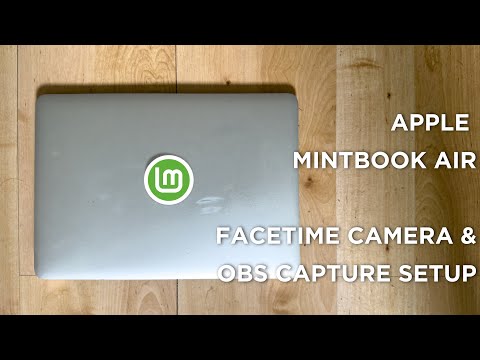
Two scripts for getting a MacBook set up for screen recording and streaming on Linux:
- facetimehd-installer.sh — Install the FaceTime HD camera driver
- obs-performance-script.sh — Optimize OBS performance on Linux Mint
FaceTime HD Camera Installer
Gets the built-in FaceTime HD camera working on Linux for older MacBooks (2012-2017 models with the Broadcom 1570 PCIe camera).
Compatible Models
- MacBook Air (A1466, A1369, and similar)
- MacBook Pro (2012-2017 models)
- iMac (2012-2017 models)
Note: Newer MacBooks with T2 chip or Apple Silicon are NOT supported.
Supported Distros
- Ubuntu 20.04+
- Linux Mint 20+
- Debian 11+
- Fedora 36+
Usage
chmod +x facetimehd-installer.sh
./facetimehd-installer.sh
Do NOT run with sudo — the script uses sudo internally where needed.
What It Does
| Step | Action |
|---|---|
| 1 | Detects your distro and kernel version |
| 2 | Checks Secure Boot status (driver won't load with SB enabled) |
| 3 | Installs build tools (gcc, kernel headers, DKMS) |
| 4 | Removes any previous facetimehd installations |
| 5 | Downloads and extracts camera firmware from Apple's driver |
| 6 | Downloads, patches (for kernel 6.x), and builds the kernel module |
| 7 | Installs via DKMS (auto-rebuilds on kernel updates) |
| 8 | Blacklists conflicting bdc_pci module |
| 9 | Loads the module and verifies camera appears at /dev/videoN |
Secure Boot
The facetimehd kernel module is unsigned. If Secure Boot is enabled, the module won't load. Options:
- Disable Secure Boot in BIOS/UEFI (recommended)
- Sign the module yourself (advanced)
- Try anyway (will likely fail)
Troubleshooting
# Check if module is loaded
lsmod | grep facetimehd

# Check kernel messages
sudo dmesg | grep -i facetime

# Check for video device
ls /dev/video*

# Test with a camera app
cheese
OBS Performance Script
Temporarily optimizes your Linux Mint system for OBS recording/streaming by disabling compositor effects and setting performance-mode CPU/GPU.
Usage
chmod +x obs-performance-script.sh
./obs-performance-script.sh
This launches OBS with optimizations applied. When you close OBS, all settings are automatically restored.
What It Optimizes
| Setting | Change | Why |
|---|---|---|
| Compositor | Disabled | Frees GPU from rendering shadows, transparency, animations |
| Fullscreen unredirect | Enabled | Bypasses compositor for fullscreen apps |
| VSync | Disabled | Reduces GPU overhead and input lag |
| CPU governor | Performance | Maximum clock speed for encoding |
| GL threading | Enabled | Better OpenGL performance |
| PulseAudio latency | 30ms | Better audio/video sync |
How It Works
- Saves your current desktop settings
- Applies performance optimizations
- Launches OBS with GPU-friendly environment variables
- Waits for OBS to close
- Restores all original settings
Your desktop will look plain while OBS is running (no effects/transparency) but returns to normal the moment you close OBS.
Works With
- OBS installed via apt (
obs-studio) - OBS installed via Flatpak (
com.obsproject.Studio)
Uninstalling
FaceTime HD Camera Driver
# Unload module
sudo modprobe -r facetimehd

# Remove DKMS module
sudo dkms remove facetimehd/0.6.13 --all

# Remove files
sudo rm -rf /usr/src/facetimehd*
sudo rm -f /etc/modprobe.d/blacklist-facetimehd.conf
sudo sed -i '/facetimehd/d' /etc/modules

# Remove firmware
sudo rm -rf /lib/firmware/facetimehd
OBS Performance Script
Just delete the script — it doesn't install anything permanently.
Credits
- patjak/facetimehd - FaceTime HD camera driver
- patjak/facetimehd-firmware - Firmware extractor
- OBS Studio - Open source streaming/recording
- Linux Mint - Target distribution for OBS script
License
This project is provided as-is.